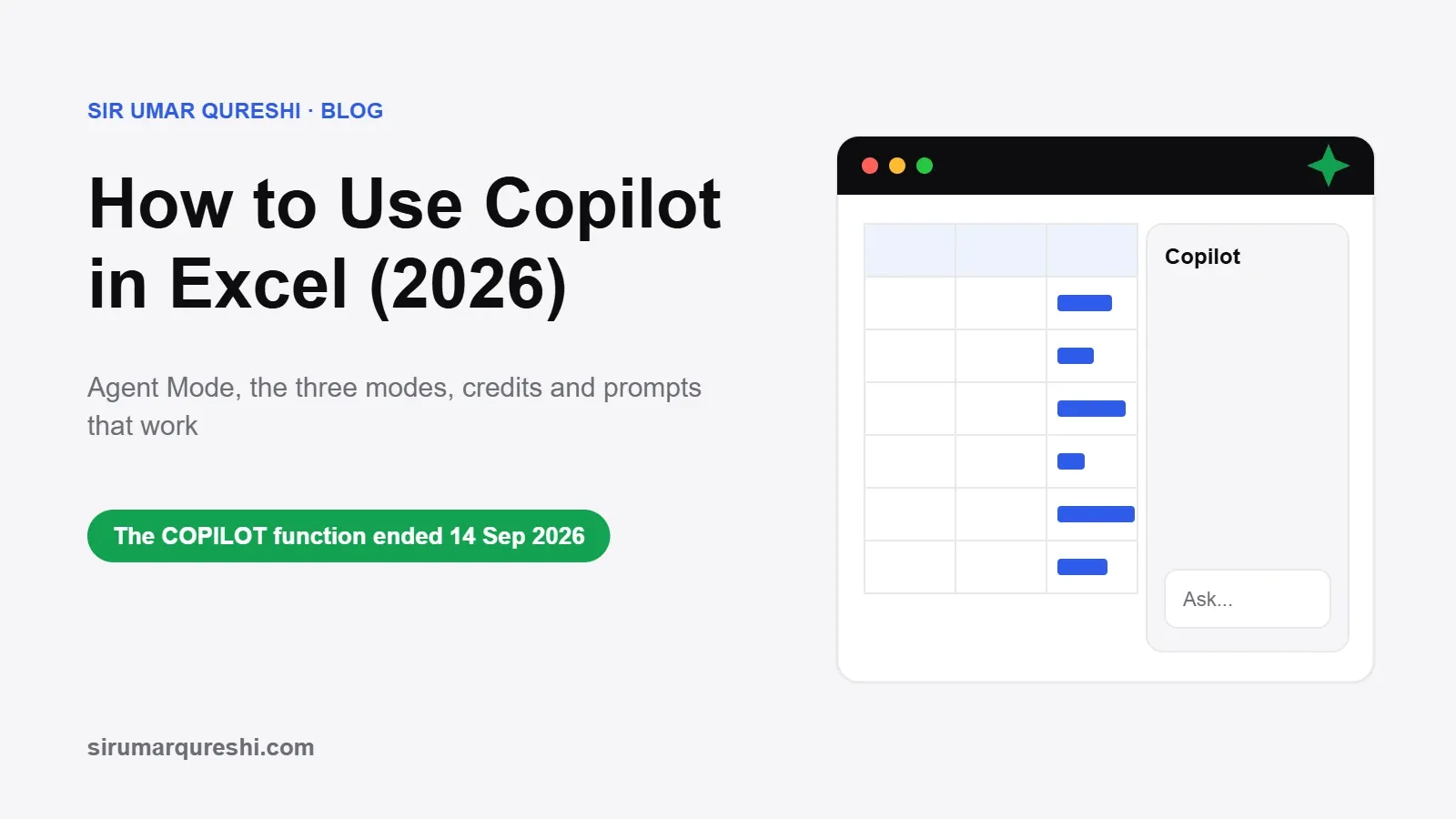
Copilot in Excel is the AI assistant that sits inside Excel and can read, explain and now directly edit your workbook from a plain-English request. In 2026 it works in three modes (Chat, Plan and Edit), it is included with several Microsoft 365 plans, and it replaced the experimental COPILOT worksheet function, which Microsoft switched off on 14 September 2026.
This guide shows you how to set it up, which mode to pick, how to write prompts that give clean results, and how to check its work before you trust it. I teach Excel to students and office staff, and I also build software, so I will keep one foot in each world: what saves you time today, and what you still need to understand yourself.
What Is Copilot in Excel, and What Changed in 2026?
For a long time, Copilot in Excel was a chat box. You asked a question, it suggested a formula or a chart, and you decided whether to insert it. That has changed. Microsoft's Get started with Copilot in Excel page now describes a Copilot that can add, rename and delete sheets, change cells and ranges, apply formatting and data validation, and build charts, PivotTables and dashboards linked to your data.
This editing behaviour is what most people call Agent Mode in Excel. You describe a goal, Copilot makes a step-by-step plan, carries it out in the workbook and then checks whether the result matches what you asked. You can watch the changes appear while it works.
A few other things are new as well:
- Web search with citations. Copilot can look things up online and show where the information came from.
- Importing from other workbooks. It can pull data from files on OneDrive, SharePoint or your own computer.
- Custom skills and rules. You can save repeatable tasks as skills and set guidelines for a workbook.
- A model picker. On eligible plans you can choose which AI model runs your request.
When Microsoft announced general availability on Windows, SumProduct's report noted that the model choice covered both OpenAI and Anthropic models, and that the rollout was not yet available to customers in the EU or UK at that point. Microsoft's own roadmap entry RM543242 lists Agent Mode in Excel as launched for Microsoft 365 subscribers without a paid Copilot licence, on the web, Windows and Mac, with a January 2026 release.
What Happened to the Excel COPILOT Function?
If you watched tutorials in late 2025, you probably saw a formula like =COPILOT("Classify sentiment", B2:B100). It let you send a prompt from a cell and get an AI answer back in the grid. It never left preview.
According to The Register, the function first appeared in August 2025 for Beta Channel users. Microsoft had planned a wider release in 2027, but its roadmap later said the company had decided not to move forward with the feature.
Microsoft's COPILOT function support page now confirms the details:
- From 14 September 2026, the Excel COPILOT function no longer runs.
- It was only ever available through the Frontier and Microsoft 365 Insider programmes.
- Workbooks keep their cached results, but when a cell recalculates it shows
#NAME?. - Microsoft's suggested replacement is the Copilot pane in the lower-right corner of Excel.
Office Watch adds that the function was capped at 100 calculations every 10 minutes, which made it awkward for large sheets anyway.
How to rescue an old workbook that used it
- Press Ctrl + F, open Options, search for
COPILOT, set Look in to Formulas and Within to Workbook. - Select each result range, copy it and use Paste Values so the text stays even when the formula dies.
- Check any formulas that depended on those cells, especially spilled ranges, because a broken source can blank out a whole block.
- For new work, ask the Copilot pane to do the same job and write the results into a column you can review.
Note: If someone shares a template that still uses the COPILOT function, do not rebuild your reports on it. Convert the outputs to values first, then decide whether Copilot in the pane or a normal formula should do the job.
Do You Need to Pay for Copilot in Excel?
Is Copilot in Excel free? Not on its own. You need a Microsoft 365 plan that includes Copilot, but you do not always need a separate Copilot add-on.
Microsoft's Copilot in Excel FAQ lists four ways to qualify:
- A Microsoft 365 Personal or Family subscription with an AI credits plan.
- A Microsoft 365 Premium subscription.
- A commercial Microsoft Copilot subscription.
- A Copilot Chat-eligible Microsoft 365 or Office 365 business or enterprise subscription.
Here is how the main home plans compare, using the figures I could verify:
| Plan | Price | Copilot access |
|---|---|---|
| Microsoft 365 Personal (Pakistan) | Rs22,999 per year or Rs2,299 per month | Copilot in select apps, with usage limits, for the owner only |
| Microsoft 365 Personal (US) | $99.99 per year | 60 AI credits per month |
| Microsoft 365 Family (US) | $129.99 per year | 60 AI credits per month, owner only |
| Microsoft 365 Premium (US) | $199.99 per year | Much higher Copilot usage, owner only |
| Personal or Family Classic | $69.99 or $99.99 per year | No Copilot, limited availability |
The Microsoft 365 Personal price in Pakistan comes from Microsoft's Pakistan store page for Microsoft 365 Personal, which also says AI features belong to the subscription owner and cannot be shared. The US prices and the Premium and Classic details come from Office Watch's 2026 plans overview.
How AI credits work
Pureinfotech explains that Personal and Family subscribers get 60 AI credits a month, one credit covers one AI task, and credits reset on the first day of each month whatever your billing date. The same credits are shared across Word, Excel, PowerPoint, Outlook and several other apps. On a Family plan, only the owner gets them.
Sixty tasks sounds like a lot until you start chatting casually. Treat each request as a small job with a clear goal, and you will get far more from your monthly allowance. The prompt formula later in this guide helps with that.
What about office and school accounts?
If you use Excel through your employer, check with your IT team before you assume anything. Microsoft notes that Copilot might not be included in your subscription, or might be switched off by your organisation's settings. The FAQ also says Copilot in Excel cannot be turned off on its own; it follows the admin settings for Microsoft Copilot Chat.
Chat, Plan or Edit: Which Copilot Mode Should You Use?
Open Copilot by selecting the Copilot icon in the lower-right corner of Excel. At the top of the chat box you will see a mode menu. Picking the right mode is the single biggest habit that separates calm Copilot users from frustrated ones.
| Mode | What it does | Changes your file? | Use it when |
|---|---|---|---|
| Chat | Answers questions and analyses data | No | You want to understand a sheet or test an idea |
| Plan | Writes a plan for you to review first | Only after you approve | The task is big, shared or important |
| Edit | Makes the changes directly (the default) | Yes, straight away | The task is small and you can undo easily |
My rule for new users is simple. Start in Chat to understand the data. Move to Plan for anything that touches more than one sheet. Use Edit when you have done the task before and know what good looks like.

Which devices support which mode?
According to Microsoft's getting-started page, all three modes work on Windows, Mac and Excel for the web. The iPad supports Chat and Plan, while the iPhone and Android apps support Chat only. Edit mode is listed as rolling out on iPad and iPhone. So if you want to build or fix workbooks with Copilot, do it on a laptop or in the browser.
Before You Start: How Should You Prepare Your Workbook?
Copilot reads your sheet much like a new colleague would. If the sheet is messy, the answers will be messy too. Spend five minutes on these steps first:
- Save as a normal .xlsx file. Microsoft's FAQ says unsupported formats such as Strict Open XML Spreadsheet cause errors.
- Set calculation to Automatic. Go to Formulas, then Calculation Options. The FAQ says Copilot editing only works when this is set to Automatic.
- Use one header row with clear names. "Order Date" and "Amount (PKR)" beat "Col1" and "Rs".
- Keep one type of data per column. Do not mix dates and text, or numbers and notes, in the same column.
- Remove merged cells and blank rows inside the data range. They confuse both people and AI.
- Format the range as a table with Ctrl + T and give it a sensible name, such as Sales.
- Check the file is not checked out in SharePoint. The FAQ warns this can cause an "Unsupported file state" error on Windows and Mac.
Steps 3 to 6 are my own classroom habits rather than Microsoft requirements, but they make every tool better, including PivotTables and Power BI. If you want to go deeper on clean data, my guide on Power BI vs Excel explains why tidy tables matter for reporting.
Step by Step: Your First Task With Agent Mode in Excel
Let us walk through a realistic task. This is an example scenario, not a real client: a small computer accessories shop in Abbottabad keeps one sheet of daily sales with columns for Date, Product, Category, Quantity, Unit Price and City. The owner wants a monthly summary and a simple dashboard.
Step 1: Ask in Chat mode first
Switch to Chat and ask Copilot to describe the data. A good first prompt is:
Describe the Sales table. List each column, its data type, the date range covered, and any blanks or odd values you notice.
This costs you one request, but it tells you whether Copilot has understood the sheet. If it says the Date column contains text, fix that before you go further.
Step 2: Switch to Plan mode for the real job
Now describe the full result you want:
Create a new sheet called Summary. Add a PivotTable from the Sales table showing total revenue (Quantity times Unit Price) by month and Category. Add a clustered column chart of revenue by month. Do not change the Sales sheet.
Copilot will reply with a plan. Read it line by line. Check that it will calculate revenue the way you expect and that it will leave your original data alone.
Step 3: Approve, watch and stop if needed
Approve the plan and watch the pane. Copilot shows its reasoning as it goes, and changes appear in the workbook live. If it heads the wrong way, use the Stop button on the right side of the chat input. Stopping early is cheaper than cleaning up a long wrong answer.
Step 4: Refine with follow-ups
Microsoft's Copilot in Excel tips page recommends starting broad and then refining. So follow up in the same conversation:
On the Summary sheet, sort months in calendar order, format revenue as PKR with no decimals, and add a slicer for City.
Step 5: Check the numbers yourself
Pick one month and one category. Filter the Sales table manually and add up the revenue with a quick SUMIFS. If your figure matches the PivotTable, you can trust the structure. If not, ask Copilot to explain how it calculated that cell.
Once the summary is right, you could automate the daily data copy with a tool like Power Automate Desktop. My Power Automate Desktop beginner's guide shows how to build that kind of flow for free.
A Simple Prompt Formula for Better Results
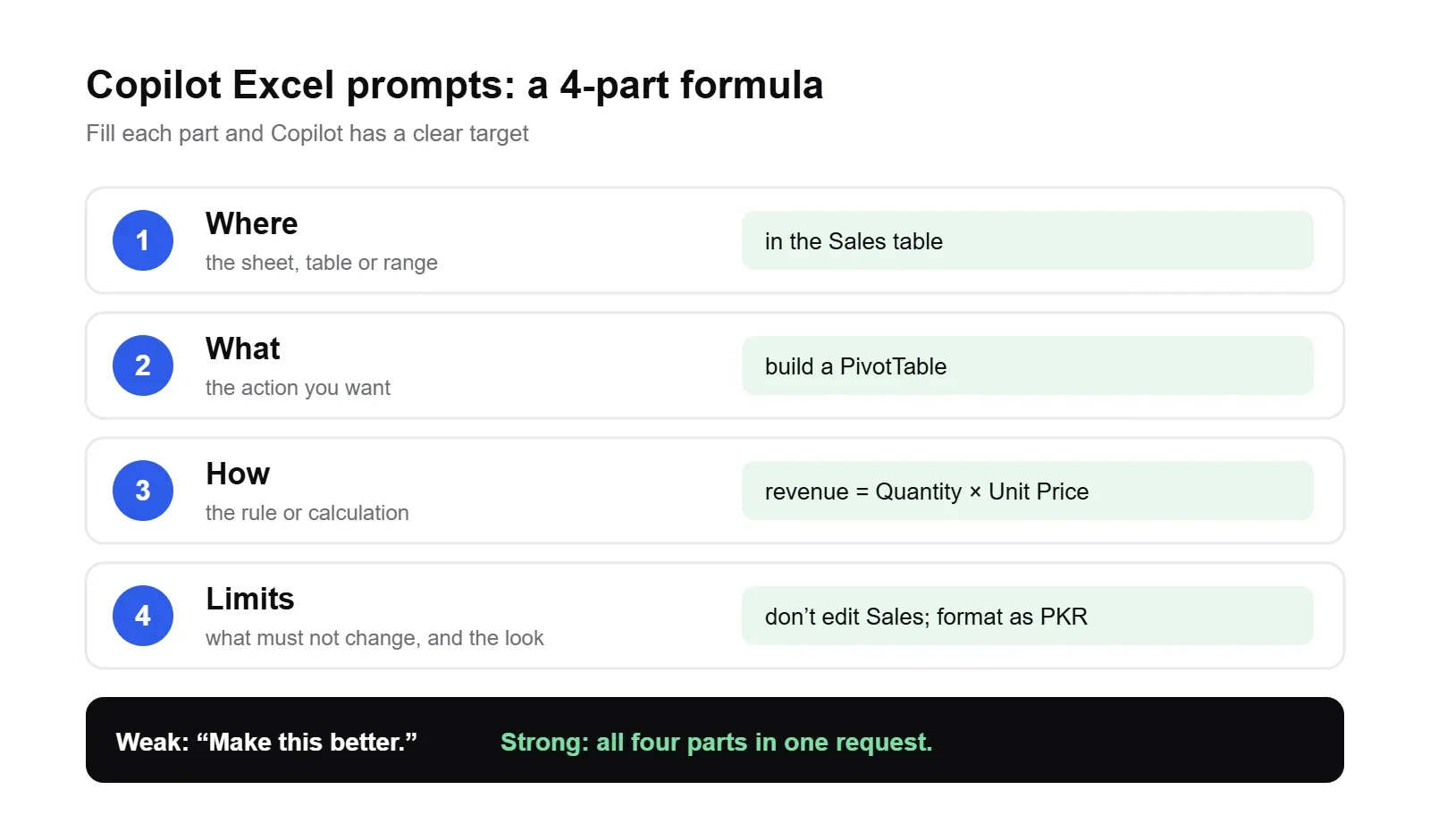
Most weak results come from vague prompts. "Make this better" gives Copilot nothing to aim at. Microsoft's tips page says to be specific and to name the columns or ranges you want Copilot to use. I turn that advice into a four-part formula for my students:
- Where: the sheet, table or range ("in the Sales table").
- What: the action ("add a column", "build a PivotTable", "highlight").
- How: the rule or calculation ("Quantity times Unit Price", "above 50,000").
- Limits: what must not change and how the output should look ("do not edit the original sheet", "format as PKR").
12 Copilot Excel prompts you can adapt
These copilot excel prompts follow the formula. Swap in your own table and column names.
| Job | Prompt |
|---|---|
| Understand | Explain what each formula in column F of the Payroll sheet does, in simple words. |
| Clean | In the Contacts table, trim extra spaces in Name and make every Email lowercase. Put results in new columns. |
| Split | Split the Full Name column into First Name and Last Name in two new columns. |
| Calculate | Add a Revenue column to the Sales table equal to Quantity times Unit Price. |
| Look up | Add a Category column to Orders by matching Product ID with the Products sheet. |
| Flag | Highlight rows in Expenses where Amount is over 50,000 and Approved is blank. |
| Summarise | Create a PivotTable of total sales by City and month on a new sheet. |
| Chart | Add a line chart of monthly revenue for the last 12 months with a clear title. |
| Find patterns | Which three products had the biggest drop in sales this quarter compared to last? |
| Validate | Add a drop-down list to the Status column with the options Pending, Paid and Cancelled. |
| Fix | Find formulas on this sheet that return errors and suggest fixes before changing anything. |
| Teach | Show me how to write this lookup myself with XLOOKUP, step by step. |
That last prompt is my favourite. Copilot is a patient tutor if you ask it to teach rather than just do. If you want the formulas behind these tasks, my list of 15 Excel formulas every job needs covers XLOOKUP, SUMIFS, TEXTSPLIT and more.
Save time with rules and skills
If you repeat the same instructions, stop typing them every time. The tips page describes rules, which set guidelines for a workbook, and custom skills, which handle repeatable tasks. A rule might say "always format money as PKR with no decimals". A skill might be "clean a new month's bank export and add it to the Transactions table".
How Do You Check Copilot's Work Before You Trust It?
Microsoft is clear on this point. Its FAQ says Copilot can make mistakes, misunderstand information or produce inaccurate results, and it advises against relying on Copilot for financial, legal or medical decisions. When Microsoft first launched the COPILOT function, it said the output should be reviewed and validated, especially for critical business decisions, as The Register reported.
So build a short checking routine and use it every time:
- Spot-check one row. Recalculate one result by hand or with a simple formula.
- Check the totals. Compare the grand total in any summary with a plain SUM of the source column.
- Read the formulas. Click a few cells Copilot created and read the formula bar. If you cannot follow it, ask Copilot to explain it.
- Look at the edges. Check the first and last rows, blank cells and any text that looks like a number.
- Keep a copy. For important files, save a copy before you let Edit mode loose.
Warning: Copilot edits the workbook directly, and saved changes are visible to everyone who has access to the file, including co-authors. Before you try a big change on a shared file, turn AutoSave off so you can test without saving, as Microsoft's tips page suggests. If something goes wrong, use Undo or restore a previous version.
On privacy, the FAQ says you can delete your Copilot activity history, but you cannot delete single conversations. Do not paste passwords, CNIC numbers or bank details into a prompt, even on a personal account.
Where Does Copilot in Excel Still Struggle?
Copilot is useful, but it is not magic. Here are the common limits, including the ones Microsoft documents.
Messy or mixed-language data
Microsoft's FAQ says prompts and data in languages other than English may give weaker results because Copilot was trained mainly on English sources. If your sheet mixes Urdu product names with English headers, keep the headers and your prompts in English, and check text-based results carefully.
Vague goals
"Analyse this" will get you a generic summary. "Which city had the highest average order value in September?" gets you an answer you can act on.
Mobile phones
On iPhone and Android you only get Chat for now. That is fine for questions while you travel, but not for building anything.
Model choice resets
If your plan offers the model picker, it sits in the upper-left corner of the pane and defaults to Auto. The FAQ notes your choice only lasts for the session and resets when you close Excel. In business accounts, an admin must allow other AI providers before Anthropic models appear.
Credits run out
With 60 credits a month on Personal or Family, a long back-and-forth on one problem can use a big share of your allowance. Plan your request in Notepad before you send it.
Copilot or Formulas: What Should You Still Learn?
Students often ask whether they still need to learn Excel now that Copilot exists. My answer is yes, and the reason is practical. You cannot check work you do not understand.
| Task | Let Copilot lead | Learn it yourself |
|---|---|---|
| First draft of a dashboard | Yes | Learn PivotTables so you can adjust it |
| Lookups between sheets | Good for a first try | Yes, XLOOKUP is a core job skill |
| Cleaning text and dates | Yes, with review | Learn TRIM, TEXTSPLIT and date formats |
| Monthly reports that must match the bank | Only as a helper | Yes, you own the numbers |
| Repeating the same steps daily | Use a custom skill | Consider Power Query or automation |
| Job interviews and skills tests | No | Yes, you may have to work without AI help |
Think of Copilot as a fast junior assistant. It drafts, you review. The people who get the most from it are the ones who already know what a correct answer looks like. If you are preparing for data roles, my PL-300 exam guide shows how Excel skills lead into Power BI certification.
Is Copilot in Excel Worth It for Students and Small Businesses in Pakistan?
It depends on how much Excel work you do. Here is a fair way to decide.
- Office staff on a company account: ask IT whether Copilot Chat or a Copilot licence is already enabled. You may have access without paying anything extra yourself.
- Students: learn the basics first with free Excel for the web. Add Copilot when you can already build a PivotTable and a lookup without help, so you learn rather than copy.
- Freelancers and shop owners: at Rs22,999 a year for Personal, Copilot pays off if it saves you a few hours a month on reports, invoices or stock sheets. Track the time you save for one month before you renew.
For small firms that want AI in more than one app, my guide to AI automation for small business covers wider workflows and their costs. If you need a custom system instead of a spreadsheet, such as an inventory or billing tool, you can see the kind of platforms I build on my services page.
What to Try This Week
Pick one real spreadsheet you use every week. Clean it with the seven preparation steps above, then open Copilot in Chat mode and ask it to describe the data. Next, write one Plan-mode prompt using the Where, What, How and Limits formula, approve it, and check one result by hand.
That single exercise will teach you more about Copilot in Excel than an hour of videos. If you would like guided practice, I teach Office Automation and Excel on campus in Abbottabad, including at PSTA, and live online. You can read about my teaching or get in touch to plan a session.