Google Apps Script for beginners starts with one idea: you write a short piece of JavaScript inside a Google Sheet, and Google runs it for you, on a schedule or when something changes. You need no software, no server and no paid plan, just a Google account and one boring task you are tired of doing by hand.
In this guide you will build a real script step by step, learn how triggers work, see the exact limits of a free Gmail account, and get five starter projects you can copy into your own school, shop or office. If you already know Excel or Sheets formulas, your first working script will change how you see spreadsheets.
What Is Google Apps Script, and Who Is It For?
Google describes Apps Script as a platform for building business tools that connect with Google Workspace. According to the official Apps Script overview, there is nothing to install. The code editor opens in your browser, your project is saved in Google Drive, and the code runs on Google's servers.
The language is modern JavaScript. On top of it, Google adds ready-made "services" for its own apps, such as SpreadsheetApp for Sheets, GmailApp and MailApp for email, DriveApp for files and CalendarApp for events. You call these services like normal functions.
That makes Google Apps Script for beginners a good fit for three groups of people:
- Office staff and teachers who live in Google Sheets and Forms and repeat the same steps every week.
- Small business owners who track orders, stock or fees in a sheet and want reminders without paying for software.
- Students learning to code who want a quick way to see JavaScript do something useful on day one.
If your office runs on Microsoft 365 and desktop Excel instead, you may get more from my guide to Power Automate Desktop for beginners. The ideas are similar, but the tools are different.
What Can You Automate With Apps Script?
The overview page lists the main things Apps Script can do. You can add custom menus, dialogs and sidebars to Docs, Sheets and Forms. You can write custom functions and macros for Sheets. You can publish small web apps, and you can connect to other Google services such as Calendar, Drive, Gmail and Maps.
In daily office terms, that turns into jobs like these:
- Send a reminder email to everyone whose fee or invoice is still unpaid.
- Copy each new Google Form response into a clean, formatted report sheet.
- Create a Google Doc certificate or letter for every row in a sheet.
- Put a date stamp next to a row the moment someone marks it "Done".
- Email yourself a short summary of a sheet every morning.
- Add a custom formula, such as a grading rule your school uses, that works like SUM or VLOOKUP.
Notice the pattern. Each job has a clear input (a sheet, a form, an inbox), a fixed rule and a predictable output. If you can describe a task in that shape, Apps Script can usually do it.
What Do You Need Before You Start?
The list is short:
- A Google account. A normal gmail.com account works. A school or company Google Workspace account also works and gets higher limits.
- A Google Sheet with sample data. Use made-up rows while you learn, never your only copy of real records.
- Basic JavaScript. Variables, if statements, loops and functions are enough for most beginner scripts. If you have never coded, spend a week on these basics first. My web development roadmap shows where JavaScript fits.
- Thirty quiet minutes. Your first script will take longer than you expect because you are learning the editor too.
You do not need Node.js, a code editor on your laptop or a credit card. Those come later, if ever.
Google Apps Script for Beginners: Your First Script in 7 Steps
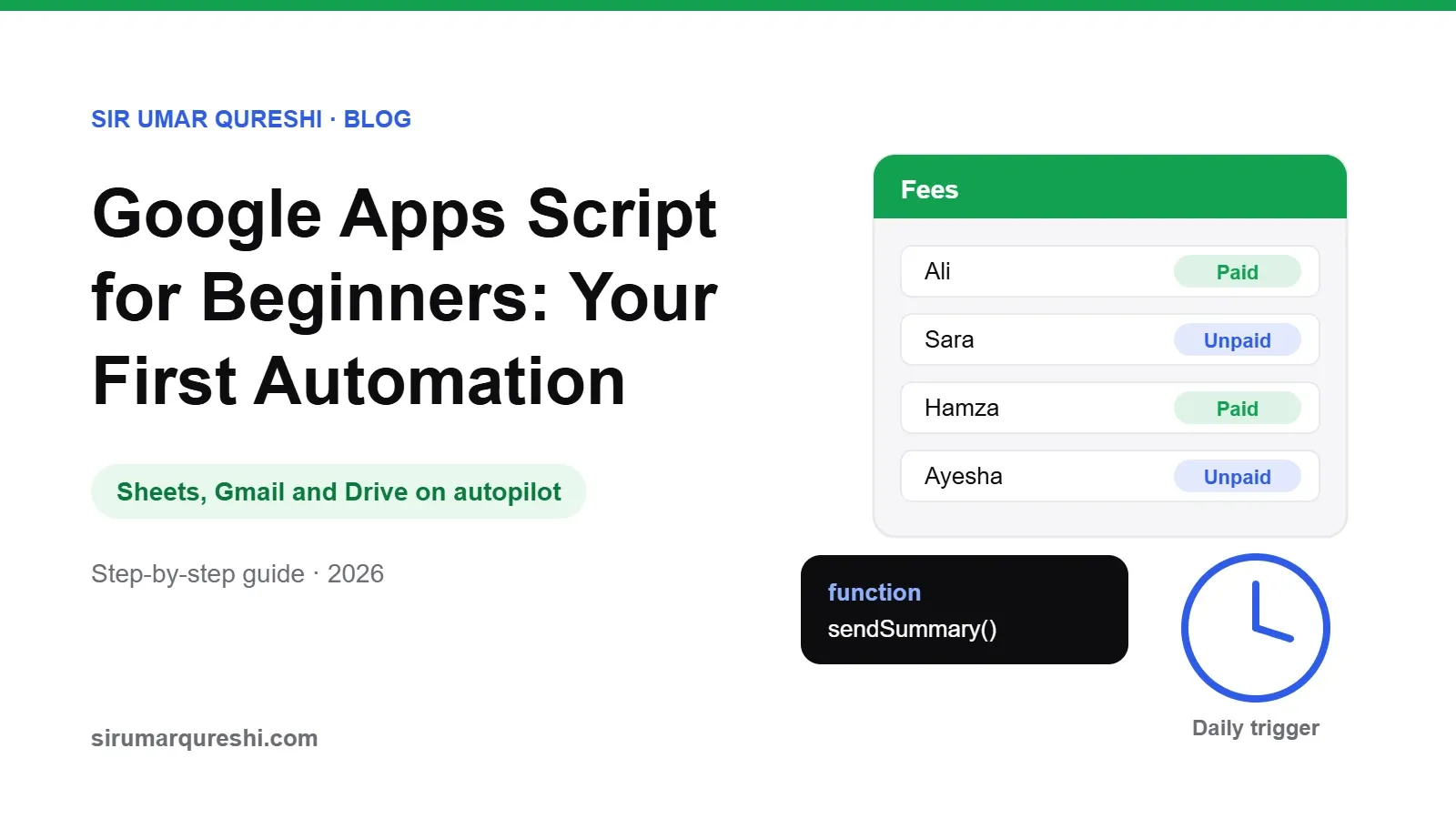
We will build something useful right away. The example below is a small academy fee sheet. It is a realistic example, not a real client. Column A holds the student name, column B the class, column C the amount and column D the status, either "Paid" or "Unpaid".
Step 1: Prepare the sheet
Create a new Google Sheet and rename the first tab to Fees. Type the four headings in row 1 and add six or seven made-up students below. Mark two or three of them "Unpaid".
Step 2: Open the editor
In the menu, click Extensions > Apps Script. A new tab opens with a file called Code.gs and an empty function. A script opened this way is "bound" to the sheet, which means it belongs to that file and can read it without extra setup.
Step 3: Write the function
Delete the empty function and paste this code:
function sendDailySummary() {
  const sheet = SpreadsheetApp.getActiveSpreadsheet().getSheetByName('Fees');
  const rows = sheet.getDataRange().getValues();
  let unpaid = 0;

  for (let i = 1; i < rows.length; i++) {
    if (rows[i][3] === 'Unpaid') {
      unpaid++;
    }
  }

  const me = Session.getEffectiveUser().getEmail();
  MailApp.sendEmail(me, 'Daily fee summary', unpaid + ' students still have unpaid fees.');
}
Read it line by line. The script finds the Fees tab, reads every row in one go with getValues(), counts the rows marked "Unpaid", then emails the total to you. The loop starts at 1 so it skips the heading row.
Step 4: Save and name the project
Press Ctrl + S. Then click "Untitled project" at the top and give it a clear name, such as "Fee reminders". Six months from now you will thank yourself.
Step 5: Run it and approve access
Choose sendDailySummary from the function list and click Run. The first time, Google asks you to authorise the script because it reads your sheet and sends email for you. Check the list of permissions, then allow it. With a personal account you may see an "unverified app" warning. That is normal for your own script, but never approve a script someone else wrote unless you have read and understood its code.
Step 6: Check the result
Open your inbox. You should have an email that says how many students are unpaid. If something went wrong, open Executions in the left sidebar to see the error message and the line number.
Step 7: Add a menu button
Non-coders in your office will not open the editor. Give them a button inside the sheet instead. Add this second function below the first:
function onOpen() {
  SpreadsheetApp.getUi()
    .createMenu('Automation')
    .addItem('Send fee summary now', 'sendDailySummary')
    .addToUi();
}
Save, reload the sheet, and a new Automation menu appears next to Help. You have just built your first tool.
Tip: Read and write data in bulk. One getValues() call that loads 500 rows is far faster than 500 separate getValue() calls inside a loop. The same goes for setValues() when you write results back.
How Do Apps Script Triggers Make a Script Run on Its Own?
A trigger tells Apps Script to run a function when something happens, so you no longer have to click Run. There are two kinds, and beginners mix them up often.
Simple triggers
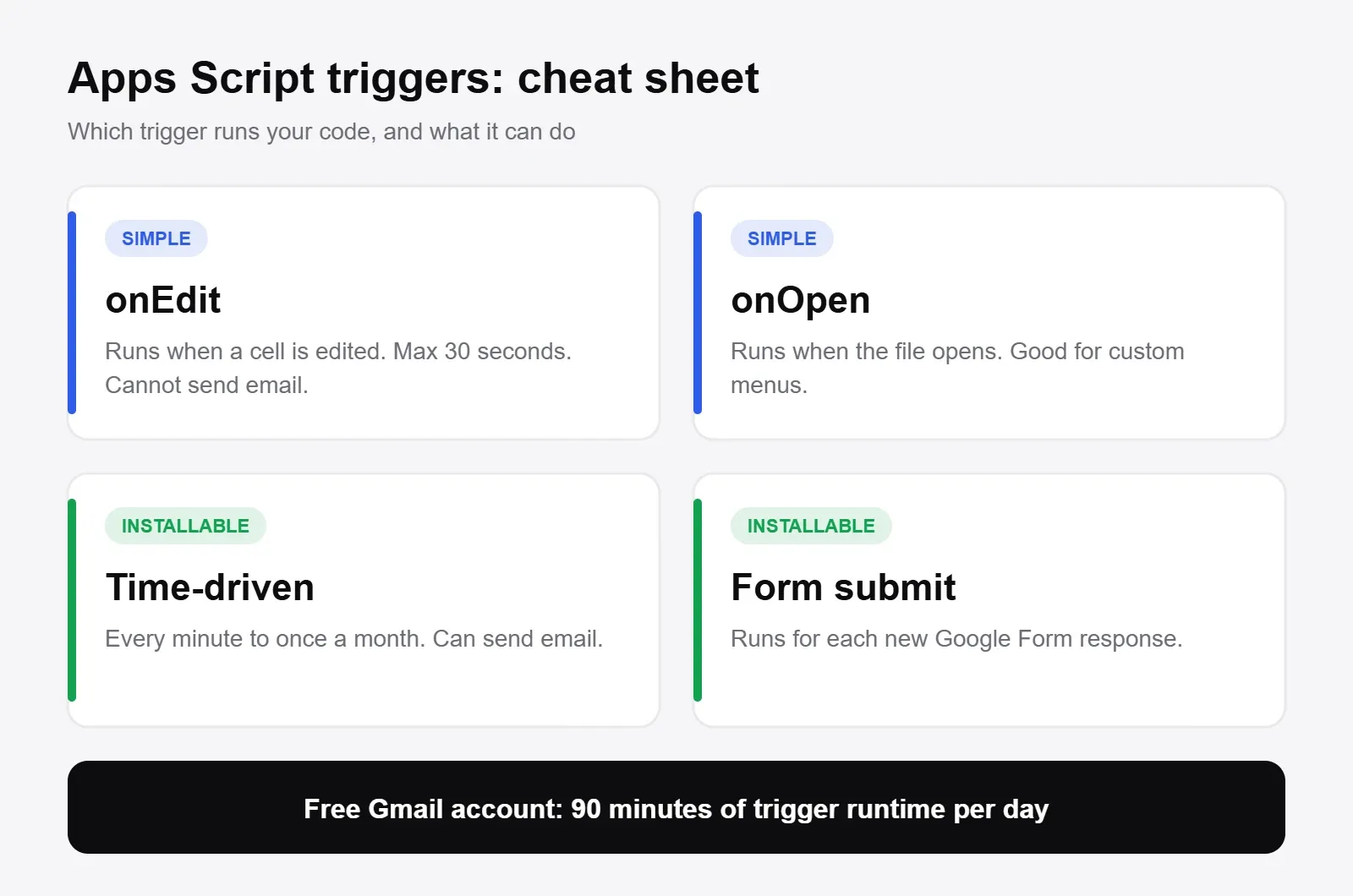
Simple triggers are functions with reserved names. Google's triggers guide lists onOpen, onEdit, onSelectionChange and onInstall for editor files, plus doGet and doPost for web apps. You just name your function correctly and it works. Your onOpen menu above is a simple trigger.
They come with firm rules. A simple trigger cannot use services that need authorisation, so it cannot send email through Gmail. It cannot run for more than 30 seconds. It does not fire when a file is opened in view or comment mode, and it can change only the file it is bound to.
Here is a classic simple trigger. It writes the date and time in column E whenever someone edits the status in column D:
function onEdit(e) {
  const range = e.range;
  if (range.getSheet().getName() === 'Fees' && range.getColumn() === 4) {
    range.offset(0, 1).setValue(new Date());
  }
}
Installable triggers
Installable triggers are set up in the editor and can do more, including sending email. To make your summary arrive every morning:
- Click the Triggers icon (the alarm clock) in the left sidebar.
- Click Add Trigger at the bottom right.
- Choose sendDailySummary, set the event source to "Time-driven" and pick a daily time.
- Click Save.
According to Google's page on installable triggers, time-driven triggers can run as often as every minute or as rarely as once a month. The exact time is not precise. If you ask for 9 AM, Apps Script picks a moment between 9 and 10 AM and keeps that timing from day to day. Installable triggers also always run under the account of the person who created them, which matters when a colleague leaves the organisation.
How Much Can a Free Gmail Account Do?
Apps Script is generous, but Apps Script quotas reset daily and set hard limits, and every guide to Google Apps Script for beginners should show them early. Knowing them saves you from a script that works in testing and fails on a busy day. These figures come from Google's quotas page, which also warns that limits can change without notice, so check it before you build anything large.
| Limit | Free gmail.com account | Google Workspace account |
|---|---|---|
| Email recipients per day | 100 | 1,500 |
| Total trigger runtime per day | 90 minutes | 6 hours |
| Runtime per script execution | 6 minutes | 6 minutes |
| Runtime per custom function | 30 seconds | 30 seconds |
| Triggers per user per script | 20 | 20 |
| URL Fetch calls per day | 20,000 | 100,000 |
Two of these limits matter most for beginners. The first is the 100 email recipients per day on a free account. A school with 300 parents cannot send one reminder each from a personal Gmail script in a single day. The second is the 6-minute cap per run. A script that loops through thousands of rows one cell at a time will hit it, which is another reason to read and write in bulk.
Five Starter Projects for Schools, Shops and Offices
These Apps Script examples are the projects I would build after a first script, because each one is a common Google Sheets automation request. Build them in order. Each one adds a new skill, so you grow without getting lost.
1. Unpaid fee or invoice reminders
Extend your first script. Instead of one summary email, loop through the unpaid rows and send each person a polite message with their name and amount. New skill: building personal email text from row data. Keep the 100-recipient limit in mind and add a "Reminder sent" column so nobody gets the same email twice.
2. A Google Form to formatted report
Add an installable "On form submit" trigger to a sheet that collects form responses. The script copies each new response into a tidy report tab, adds a serial number and colours urgent rows. New skill: working with event objects that describe what just happened.
3. Certificates or letters from a template
Create a Google Doc template with placeholders like {{NAME}} and {{COURSE}}. The script copies the template for each row, replaces the placeholders and saves the result in a Drive folder. New skill: DocumentApp and DriveApp working together. It is handy for teachers at the end of a term.
4. A daily stock alert
For a small shop, a time-driven trigger checks a stock sheet every morning and emails a list of items below the reorder level. New skill: filtering data and only sending email when there is something to say.
5. A custom grading formula
Write a function such as GRADE(marks) that returns A, B, C or F based on your school's rules, then use it in any cell like a normal formula. New skill: custom functions, which must finish within 30 seconds and should stay simple.
function GRADE(marks) {
  if (marks >= 80) return 'A';
  if (marks >= 65) return 'B';
  if (marks >= 50) return 'C';
  return 'F';
}
Still building your formula skills? The logic behind rules like this one is the same as in the 15 Excel formulas every job needs. Most of those formulas work in Google Sheets too.
Apps Script vs VBA vs Power Automate vs AI Assistants
A common question is which automation tool to learn first. The answer depends on where your files live and what you need to automate.
| Tool | Best for | Where it runs | Main limit |
|---|---|---|---|
| Google Apps Script | Sheets, Forms, Gmail, Drive and Calendar tasks | Google's servers, from the browser | Daily quotas and a 6-minute runtime per execution |
| Excel VBA macros | Older desktop Excel workbooks in Microsoft offices | Your Windows or Mac computer | Runs only when the workbook is open on a desktop |
| Power Automate Desktop | Clicking through Windows apps and folders | Your Windows computer | The computer must be on and signed in |
| Copilot or Gemini in your apps | One-off help: summaries, formulas, drafts | Inside the app, on request | You still ask each time; it is not a scheduled job |
The biggest practical difference is the server. An Apps Script trigger runs at 7 AM even if your laptop is switched off in your bag. A desktop macro or flow cannot do that. On the other hand, if your office data sits in Excel files on a shared drive, moving everything to Google Sheets just to use Apps Script is rarely worth the disruption.
AI assistants are useful helpers, not replacements. They answer when you ask, while a script keeps working when you are not looking.
Where Does Gemini Fit in Apps Script in 2026?
Google has moved AI closer to Apps Script this year. The Apps Script release notes show three changes worth knowing:
- On 12 January 2026, the Vertex AI advanced service became generally available. It lets a script send a prompt to a Gemini model and use the reply, for example to summarise a long form response.
- On 22 June 2026, Apps Script became generally available as a core Google Workspace service.
- On 3 August 2026, a Gemini side panel in the Apps Script editor entered Beta for customers in the Gemini Beta programme.
Before you get excited, read the requirements. Google's Vertex AI quickstart for Apps Script needs a Google Cloud project with billing turned on, and its sample uses the Gemini 2.5 Flash model. That is fine for a business that is ready to pay for usage. For a beginner, it is a step for later.
My advice is simple. Use AI chat tools to explain error messages and suggest code, then read every line before you run it. A script that sends email can embarrass you in front of 100 people in a few seconds. You must understand what it does.
Note for old scripts: Google's V8 migration guide says the older Rhino runtime was deprecated on 31 January 2026. If you copy code from an old tutorial or inherit an old project, make sure it runs on V8 and uses modern syntax such as const and let.
Which Beginner Mistakes Break Scripts Most Often?
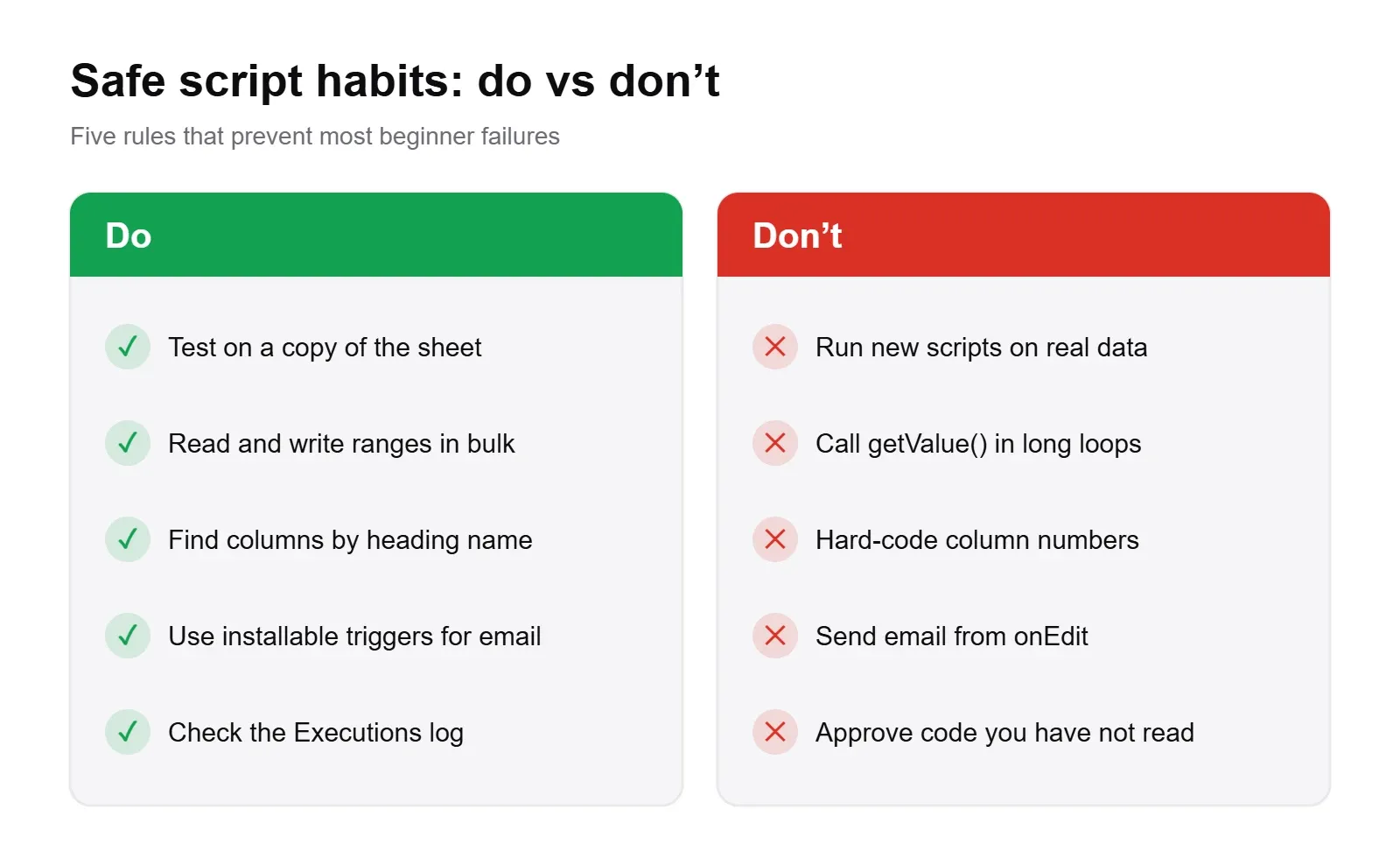
These are the problems that trip up beginners most often. Avoid them and most of your scripts will just work.
- Testing on real data. Always work on a copy of the sheet first, especially when the script deletes rows or sends email.
- Reading one cell at a time. Loops full of getValue() and setValue() calls are slow and run into the 6-minute limit. Load the range once, work on the array, write it back once.
- Hard-coding positions that change. If someone inserts a column, rows[i][3] now points to the wrong data. Find columns by their heading name when a sheet is shared with others.
- Using a simple trigger for email. onEdit cannot send email because simple triggers cannot use services that need authorisation. Use an installable trigger instead.
- Forgetting who owns the trigger. Installable triggers run under the creator's account. If that person leaves, the automation can stop. Keep a short note in the sheet saying who set it up.
- Approving scripts you have not read. A shared sheet with a script can ask for access to your Gmail and Drive. Read the code or ask someone you trust.
- Ignoring the logs. The Executions page shows each run, its status and its error. Check it whenever a trigger seems to "do nothing".
Is Apps Script a Useful Skill in Pakistan?
If your school, academy or startup keeps its records in Google Sheets, every one of those sheets is a candidate for automation. Someone on the team who can write a short script saves everyone else hours of copying and checking.
Employers do ask for it by name. One Karachi company listed an onsite Automation and Analytics Developer role on Qureos asking for Google Apps Script workflows, AppSheet, Excel VBA and Power BI, with a stated salary of PKR 50,000 to 70,000 per month. The listing has since expired, and one job is not a market survey, but it shows the mix of skills employers bundle together: spreadsheets, scripting and reporting.
For freelancers, Apps Script work tends to come as small, clearly scoped jobs: a reminder system, a form workflow, a Sheets dashboard that emails itself. Those make good first projects for a portfolio. My freelancing guide explains how to package small jobs like these into your first offers.
For students, the real value is confidence. Apps Script can be the first time a learner sees their own code change something in the real world, and that motivation carries them into full web development.
A Simple Learning Plan for Your First Month
You do not need a long course. Spread the work over four weeks with one goal per week:
- Week 1: Build the fee summary script and the Automation menu from this guide.
- Week 2: Add the onEdit date stamp and a daily time-driven trigger. Watch the Executions page.
- Week 3: Build the personal reminder emails or the form-to-report project.
- Week 4: Build the certificate generator, then show it to a colleague and ask what they would automate next.
If you want guided practice with feedback, my teaching page has details of my computer classes. If your business needs a working system built for you, you can contact me with a short description of the task.
Your One Automation This Week
The fastest way to automate Google Sheets is to start small. Pick one task you did by hand at least three times last week. Write down its input, its rule and its output in one sentence each. Then open a copy of that sheet, click Extensions > Apps Script and build only the first step. Once you have one script running quietly every morning, the second one will take half the time.