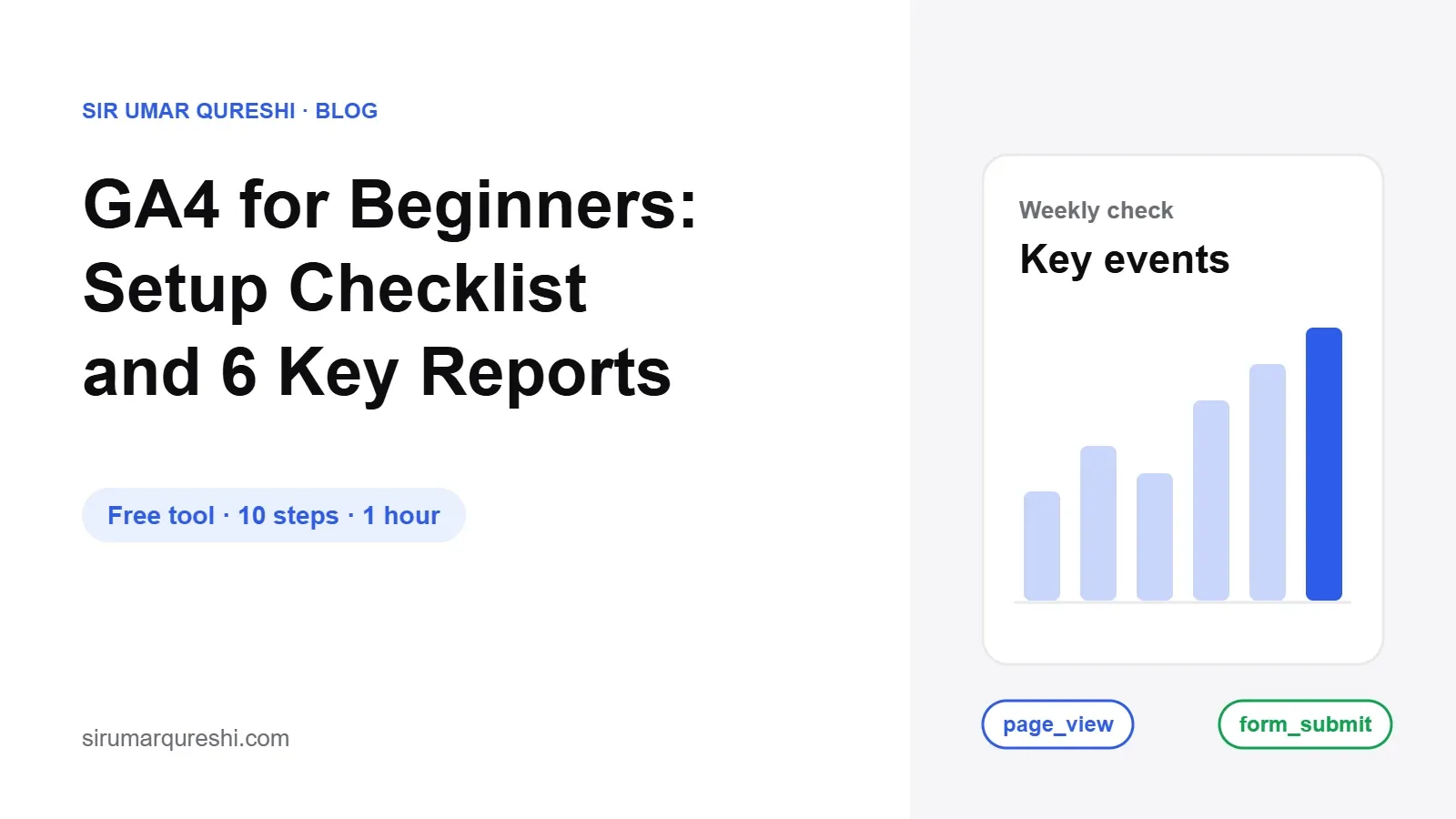
GA4 for beginners comes down to three jobs: install one tag on your site, decide which visitor actions count as wins, and check a handful of reports every week. Google Analytics 4 is free, it takes about an hour to set up properly, and most of the confusion people feel comes from skipping a few settings in the first week rather than from the tool itself.
This GA4 for beginners guide is written as a checklist. You can work through it in order, tick each item, and finish with a property that collects clean data you can trust. I teach this the same way in class: set it up once, correctly, and the reports start to make sense on their own.
What Is GA4, and Why Should a Beginner Care?
Google Analytics 4 (GA4) is Google's free tool for measuring what people do on your website or app. It tells you how visitors found you, which pages they read, and whether they did the thing you wanted, such as filling a contact form or buying a product.
If you have used the older Universal Analytics, there is nothing to go back to. According to Plainly's 2026 summary of GA4 changes, Google permanently deleted Universal Analytics historical data on 1 July 2024. GA4 is now the only version, so every new site starts here.
Why should you care as a beginner? Because guessing is expensive. A shop owner who thinks Facebook brings most sales may find that Google search does. A teacher running a course site may learn that most visitors leave from one slow page. Analytics turns those guesses into numbers you can act on.
If you also want to see what people typed into Google before they reached you, GA4 can pull that data in from Search Console. We will connect the two later in this guide.
How GA4 Thinks: Events, Key Events and Conversions
The single idea that makes GA4 click is this: everything is an event. A page view is an event. A scroll is an event. A button click, a file download and a form submission are all events.
Google's own help page on events and key events describes a simple ladder:
- Event: any action GA4 records, such as
page_vieworscroll. - Key event: an event you mark as important to your business, such as
generate_leadwhen someone completes a sign-up form. - Conversion: a key event that you use to measure and optimise Google Ads campaigns. Creating one needs a linked Google Ads account.
Older tutorials say "conversions" for everything. In GA4 today, if you are not running Google Ads, the word you want is key events. That one change explains why menu labels in old videos no longer match your screen.
Keep this ladder in mind. Almost every setting in the checklist below is about collecting the right events and promoting the few that matter.
GA4 for Beginners: The 10-Step Setup Checklist
These Google Analytics 4 setup steps follow Google's official guide to setting up Analytics for a website. Work through them in order and tick each one off. If you only do one part of this GA4 for beginners guide, do this part.
- Open Analytics. Go to analytics.google.com with the Google account you want to own the data. First-time users click Start measuring.
- Create an account. Use your business or school name. One account can hold up to 2,000 properties, so you rarely need more than one.
- Create a property. Name it after the website. Choose Pakistan time (or your own time zone) and your currency, such as PKR. Google advises against changing the property time zone more than once per day, so get it right now.
- Add business details. Pick your industry, business size and what you want to measure. These choices shape the default reports you see.
- Create a web data stream. In Admin, open Data streams, choose Web, enter your site URL and a stream name.
- Leave enhanced measurement on. Google recommends enabling it when you create the stream. It tracks scrolls, outbound clicks and more without extra code.
- Copy your Measurement ID. It starts with
G-and sits in the stream details. - Install the Google tag. If your CMS has a Google Analytics field, paste the Measurement ID there. Otherwise, paste the full Google tag code immediately after the opening
<head>tag on every page. - Wait, then test. Google says data collection can take up to 30 minutes to begin. Open your site on your phone, then check the Realtime report for your visit.
- Write down your setup. Note the account owner, Measurement ID, time zone and date of install in a simple document. Future you will thank you.
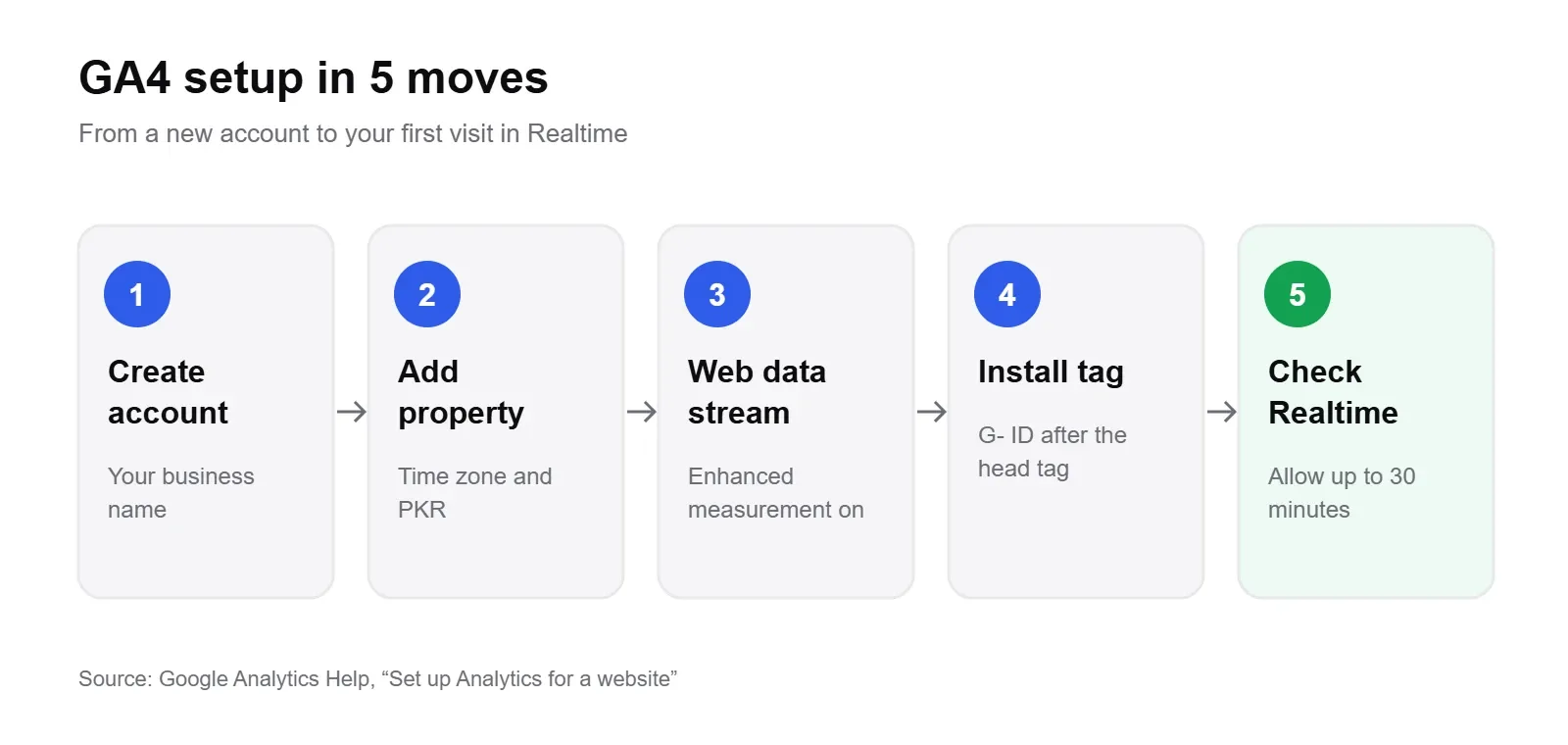
If you run WordPress, Shopify or a similar platform, steps 7 and 8 usually take two minutes. On a custom-built site, add the tag to your shared layout or header template so every page gets it automatically. That is how I handle it on custom builds: one template, one tag, no missed pages.
Not sure if you need a developer? If your site runs on a builder with an analytics field, you can do this yourself. If your site was custom coded and nobody knows where the header file lives, ask whoever built it, or get in touch and describe your setup.
Which Settings Should You Change on Day One?
The default property works, but three settings decide whether your data stays useful a year from now. Do these on the same day you install the tag.
1. Raise GA4 data retention to 14 months
GA4 keeps detailed user-level and event data for a fixed period. For standard (free) properties, Google's data retention page lists two choices: 2 months or 14 months. Choose 14.
Here is the part beginners miss. This setting only affects explorations and funnel reports. Your standard reports keep their aggregated numbers either way. But the moment you want a custom exploration comparing this March with last March, a 2-month setting leaves you with nothing to compare. Age, gender and interest data stays at 2 months no matter what you choose.
2. Filter GA4 internal traffic (your own visits)
On a small site, your own clicks while testing can be a big share of the traffic. GA4 lets you mark traffic from your office or home IP address as internal and then exclude it. Google's internal traffic guide sets it out in two parts:
- In your web data stream, open Configure tag settings, then Define internal traffic. Create a rule with the
traffic_typevalueinternaland enter your IP address. - In Admin, open Data filters, create an Internal Traffic filter set to Exclude, and start it in the Testing state.
Google says to allow 24 to 36 hours before checking whether the filter catches your visits. A property can hold up to 10 data filters.
Test before you activate. Google states that data removed by an active exclude filter is gone for good. It never appears in Analytics or BigQuery. Keep the filter in Testing for a day or two, confirm it only catches your own visits, and then switch it to Active.
One limit to know: the rule matches an IP address. If your connection gets a new address, update the rule. Visits from your phone on mobile data may still slip through, so don't worry about a few extra sessions.
3. Mark your GA4 key events
Decide what a "win" looks like for your site. For a business site, it is usually a contact form submission or a WhatsApp click. For a shop, it is a purchase. For a course site, it might be a registration.
Once that action is being collected as an event, mark it as a key event in Admin. Start with one to three. A property can have up to 30 key events, according to Google's configuration limits page, but more key events do not mean better data. They mean noisier reports.
What Does Enhanced Measurement Track for Free?
For GA4 for beginners, enhanced measurement is the best news. It is the reason a beginner can get useful data on day one without writing code. Google's enhanced measurement page lists what it collects. Here is the short version.
| What happens on your site | GA4 event name | When it fires |
|---|---|---|
| A page loads | page_view |
Every page load or history change. Always on. |
| Someone reads to the bottom | scroll |
Once per page, when 90% of the page height is visible |
| A link to another website is clicked | click |
Outbound links only |
| Someone uses your site search | view_search_results |
URL has a query parameter such as q, s, search, query or keyword |
| An embedded YouTube video plays | video_start, video_progress, video_complete |
Start, then 10%, 25%, 50% and 75%, then the end |
| A PDF or other file is clicked | file_download |
Links to common file types |
| Someone fills a form | form_start, form_submit |
First interaction in a session, then on submit |
Two practical notes. First, video tracking only works for embedded YouTube videos with JavaScript API support turned on. Second, do not assume every form on your site is caught. If your contact form is your main key event, submit it yourself and confirm that form_submit appears in Realtime before you rely on it.
The 6 Reports a Beginner Should Open Each Week
GA4 has dozens of reports. As a beginner, you need six. Plainly's guide to what changed in GA4 suggests pinning Traffic acquisition, Landing page, Pages and screens, Events and Key events through the Reports library. Add Realtime for testing, and you have a weekly routine.
| Your question | Report to open | What to look at |
|---|---|---|
| Is my tag working right now? | Realtime | Your own test visit appearing within minutes |
| Where do my visitors come from? | Traffic acquisition | Sessions by channel: Organic Search, Direct, Organic Social, Referral |
| Which page do people land on first? | Landing page | Top entry pages and their key events |
| Which pages get read most? | Pages and screens | Views and average engagement time |
| What actions are people taking? | Events | Counts for scroll, click, form_submit and your custom events |
| Are visitors doing what I want? | Key events | Your one to three wins, week over week |
A ten-minute routine works well. Every Monday, open Traffic acquisition and Key events, compare the last 7 days with the 7 days before, and write one sentence about what changed. That habit teaches you more than any course.
If you sell online, the Landing page report is where money hides. A product page that gets lots of entries but no key events is a page to fix first. My guide to starting an online store covers what those pages need.
How Do You Connect Search Console to GA4?
GA4 tells you what visitors did after they arrived. Search Console tells you which Google searches showed your pages and how often people clicked. Linking them puts both views in one place.
Google's guide to connecting Search Console to Analytics lists two requirements: you need the Editor role on the GA4 property, and you must be a verified owner of the Search Console property.
- In GA4 Admin, under Product links, open Search Console links and click Link.
- Choose the Search Console property you manage, then click Next.
- Select the web data stream for the same website.
- Review and submit.
- Go to Reports, open the Library, and publish the Search Console collection. Google leaves these reports unpublished by default.
You then get two reports: Google Organic Search Queries and Google Organic Search Traffic. Google notes that the data arrives about 48 hours after Search Console collects it and goes back a maximum of 16 months. Each web data stream can link to only one Search Console property.
The GA4 Search Console link is worth the five minutes. You can see whether a page earns clicks from search or only impressions, and that tells you which titles and pages to improve first. My comparison of SEO, AEO and GEO explains why that gap is worth watching.
GA4 Limits Worth Knowing Before You Grow
Free GA4 is generous for a small or medium site. Still, it has caps, and knowing them early saves rework once you start creating custom setups. These figures come from Google's configuration limits page for standard properties.
| Item | Limit per standard property | What it means for you |
|---|---|---|
| Key events | 30 | Plenty. Most small sites need 1 to 5. |
| Audiences | 100 | Only matters if you run remarketing ads |
| Event-scoped custom dimensions | 50 | Register only what you will report on |
| User-scoped custom dimensions | 25 | Use sparingly, for things like membership type |
| Event-scoped custom metrics | 50 | Rarely needed by beginners |
| Explorations | 200 per user | Archive old ones you no longer use |
| Data retention | Up to 14 months | Set it on day one |
When you approach a limit, many items, such as audiences, key events and custom dimensions, can be archived. Larger organisations that need more pay for Google Analytics 360, which raises limits and allows longer event data retention.
8 Beginner Mistakes That Ruin GA4 Data
I see the same problems again and again when students show me their first GA4 property. Most are easy to prevent.
- Installing the tag twice. A theme plugin adds GA4 and you paste the code by hand as well. Your events can be counted twice. Check the page source for two copies of your
G-ID. - Leaving retention at 2 months. You will not notice until you try a year-over-year exploration and find nothing.
- Counting your own testing. On a new site with little traffic, your visits can drown out real ones. Set the internal traffic filter.
- Marking every event as a key event. If scroll, click and page_view are all "wins", nothing stands out.
- Trusting form tracking without testing it. Submit your own form and check Realtime before you build reports on it.
- Owning the property with a personal or freelancer's account. If the person who set it up leaves, you lose access. The business owner's account should hold admin rights.
- Comparing GA4 with old Universal Analytics numbers. The two measure differently, and the old data is deleted anyway. Use your first full year in GA4 as the baseline.
- Collecting data and never looking. A property nobody opens is just a script slowing your site. If you care about speed, keep your tags lean.
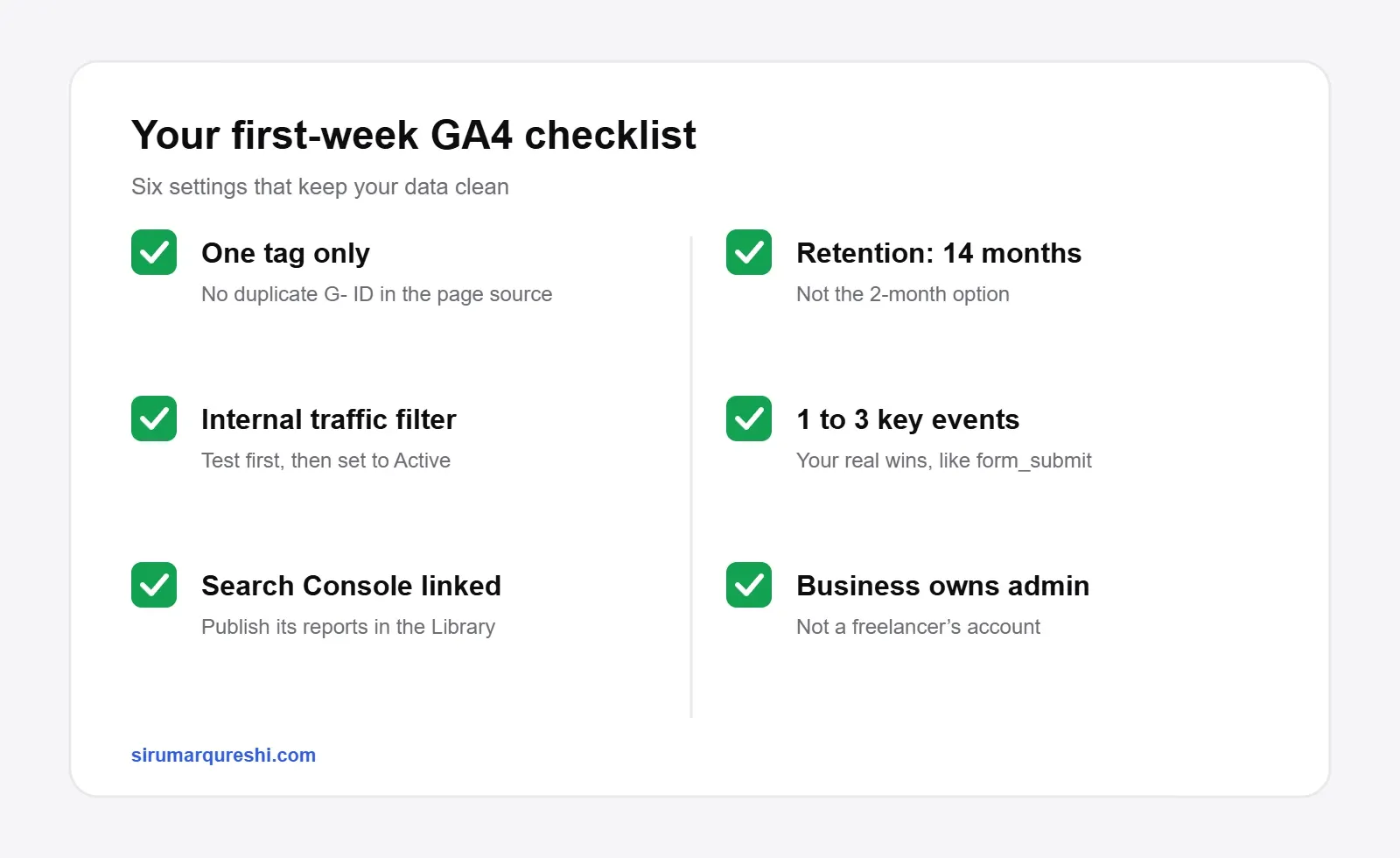
Mistake number six is common with client websites. Before you hire anyone for a site, agree that the business owns the domain, hosting and analytics accounts. My breakdown of website development costs in Pakistan lists this among the questions to ask.
A 4-Week Practice Plan for GA4 Beginners
Reading about analytics only goes so far. The fastest way to learn is to set up a real property, even on a small personal blog or a free practice site, and use it for a month. Here is a simple plan I suggest to students.
| Week | Focus | Finish line |
|---|---|---|
| 1 | Setup and settings | Tag installed, Realtime working, retention at 14 months, internal traffic filter in Testing |
| 2 | Events | You can name every enhanced measurement event and find it in the Events report |
| 3 | Key events and Search Console | One to three key events marked, Search Console linked and its reports published |
| 4 | Reading reports | Four Monday notes written, each with one change you made because of the data |
Notice that the plan ends with decisions, not dashboards. GA4 for beginners is not about memorising menus. It is about asking a clear question and knowing which report answers it. Once that habit forms, the advanced features, such as explorations and custom dimensions, become much easier to pick up.
If you get stuck on a step, go back to the official help page linked in that section. Google updates GA4 menus from time to time, and its help centre is usually the first place the change appears.
Is GA4 Worth Learning for Freelancers and Students?
If you are building a digital marketing, SEO or web development skill set, GA4 sits right in the middle of it. Every client who pays for a website or ads eventually asks, "Is it working?" GA4 is how you answer.
The low-cost way to prove you know it is Google's own certification. According to Loves Data's guide to the Google Analytics Certification, the exam is free on Google Skillshop. It has 50 multiple-choice questions, a 75-minute time limit and a pass mark of 80%. The certificate lasts 12 months, and if you fail you can retry after one day.
A certificate alone will not win clients, though. What works better is a small portfolio: one real site you set up, a screenshot of a clean Traffic acquisition report, and a short note explaining one decision the data helped you make. That proves skill in a way a badge cannot.
If you are a student working through the wider skills, GA4 pairs well with local SEO. My Google Business Profile checklist covers the other half of how small businesses in Pakistan get found. For guided lessons, see the courses on my teaching page.
GA4 vs Doing Nothing: What Changes After 30 Days?
It is fair to ask whether setup is worth an hour of your time. Here is what you can realistically know after one month of clean data, compared with having no analytics at all.
| Question | Without analytics | With GA4 after 30 days |
|---|---|---|
| Which channel brings visitors? | Guess based on feeling | Sessions by channel in Traffic acquisition |
| Which pages fail to hold attention? | Unknown | Low engagement time in Pages and screens |
| Do people read the whole article? | Unknown | Scroll events at 90% depth |
| Is the contact form being used? | Count emails by hand | Key event count, by source |
| Which Google searches find you? | Unknown | Search Console queries inside GA4 |
None of this needs paid tools. It needs a correct setup and the habit of looking once a week.
Your One GA4 Task This Week
Pick the single step you have not done yet and finish it before Friday. If you have no GA4 property, create one and install the tag. If you already have one, open Admin and check data retention. If it says 2 months, change it to 14 months. That one setting takes thirty seconds and protects a year of history.
Then, next Monday, open Traffic acquisition and write one sentence about what you see. That is how GA4 for beginners turns into GA4 you actually use. If you would rather have analytics set up as part of a new or rebuilt website, my services page explains how I work.