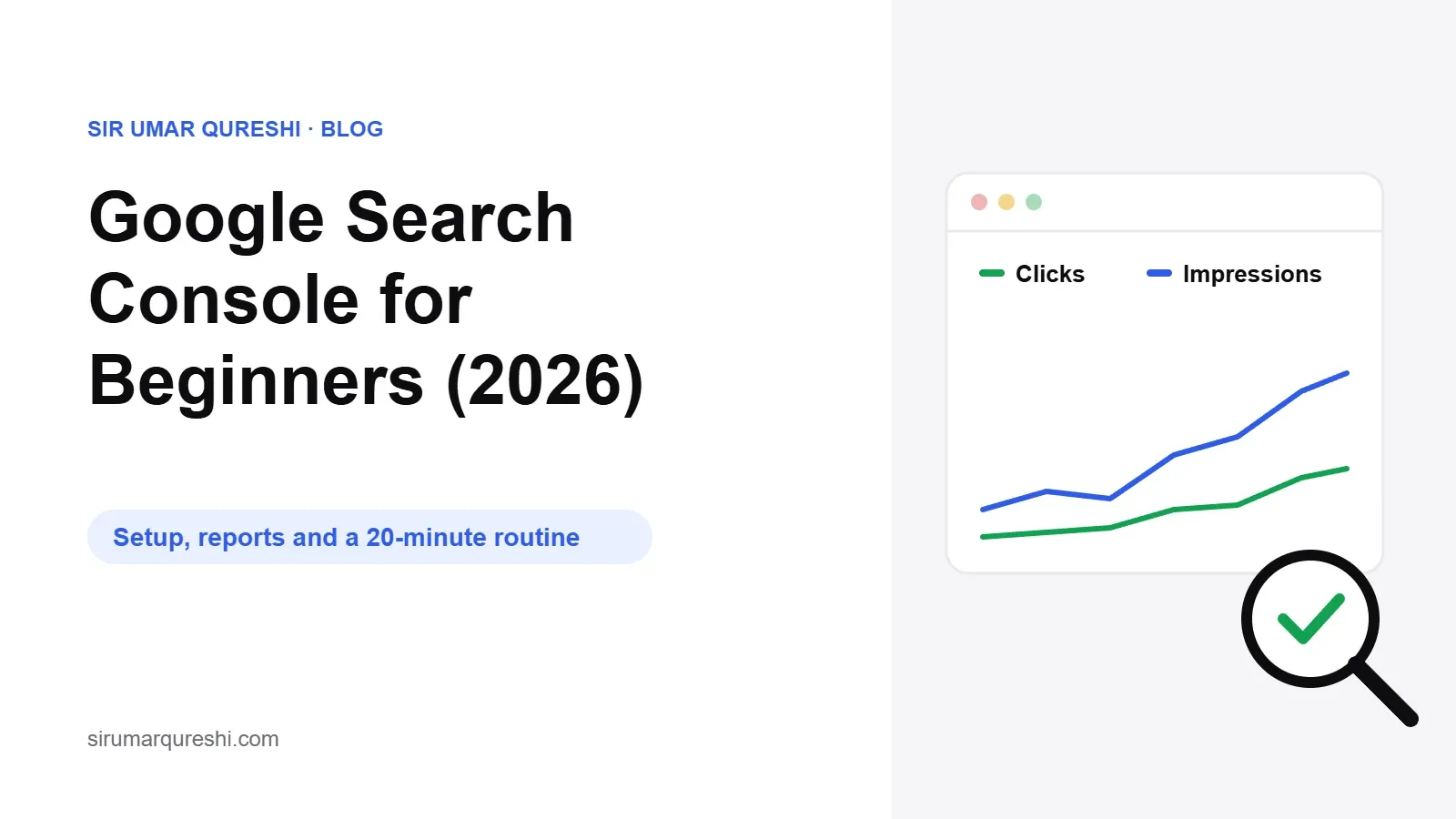
To learn how to use Google Search Console, start with three moves: add your site as a property, verify that you own it, and submit a sitemap. After that, spend most of your time in four places: the Performance report, the Page indexing report, the URL Inspection tool and your email inbox, where Google sends alerts. That routine takes about 20 minutes a month for a small website.
Below, you will set it up from scratch and then learn to read each report, using the screens as they look in 2026. It also covers the newer parts of the tool, such as the generative AI controls and the social media properties, so you know which ones matter for you and which you can ignore for now.
What Is Google Search Console, and Why Should You Care?
Google Search Console is a free tool from Google. It shows how your site performs in Google Search and how Google crawls, indexes and serves your pages. Google describes this in its own getting started guide.
Think of it as the main place where Google talks to you directly about your website. Analytics tools tell you what visitors do after they arrive. Search Console tells you what happens before they arrive: which searches showed your pages, how often people clicked, and whether Google could read the page at all.
Here is what it can do for you:
- Show the exact search terms that bring people to your site.
- Tell you which pages are in Google's index and which are not, with a reason for each.
- Alert you by email when something breaks, such as a hacked page or a manual penalty.
- Let you ask Google to recrawl a page you have just fixed.
And here is what it cannot do. It will not push your pages up the rankings, and there is no paid option inside it. It is a monitoring and diagnosis tool. Good content and a healthy website still do the ranking work. If you are new to that side, my post on SEO vs AEO vs GEO explains how ranking and AI answers fit together.
Before You Start: What You Need
You need three things before you open the tool:
- A Google account. Use one you will keep for years, ideally a business account rather than a personal one you might abandon.
- Access to your website or your domain settings. This means either your hosting panel (cPanel, Hostinger, a WordPress admin) or the DNS settings at the company where you bought your domain.
- Your sitemap address. Most platforms create one for you. On WordPress with an SEO plugin it is often /sitemap_index.xml. On other sites it is usually /sitemap.xml.
If someone else built your site, ask them for DNS access or ask them to add you as an owner. If only your developer owns the Search Console property, your data leaves when they do. Owning it yourself from day one avoids that problem.
Google Search Console Setup: Domain or URL-Prefix Property?
When you first open Google Search Console, the first screen asks you to choose a property type. This is the decision people most often get wrong, so take a minute here.
According to Google's verification help page, a Domain property covers your whole domain, including every subdomain and both http and https. It can only be verified with a DNS record. A URL-prefix property covers only the exact address you type, such as https://www.example.com, and it accepts several verification methods.
| Question | Domain property | URL-prefix property |
|---|---|---|
| What it covers | The whole domain, all subdomains, http and https | Only URLs that start with the exact prefix |
| How you verify | DNS record only | HTML file, HTML tag, Google Analytics, Tag Manager or DNS |
| Best for | Owners who can edit DNS | People with website access but no DNS access |
| Setup effort | One DNS record, then a wait | Can be quick if Google Analytics is already installed |
| My advice | Pick this if you can | Use as a fallback, or add alongside |
My recommendation is simple. If you can edit DNS, create a Domain property. You will never miss data because a page lives on a subdomain or an old http address. If you cannot reach DNS today, start with a URL-prefix property for your main https address and add the Domain property later.
How Do You Verify Your Site?
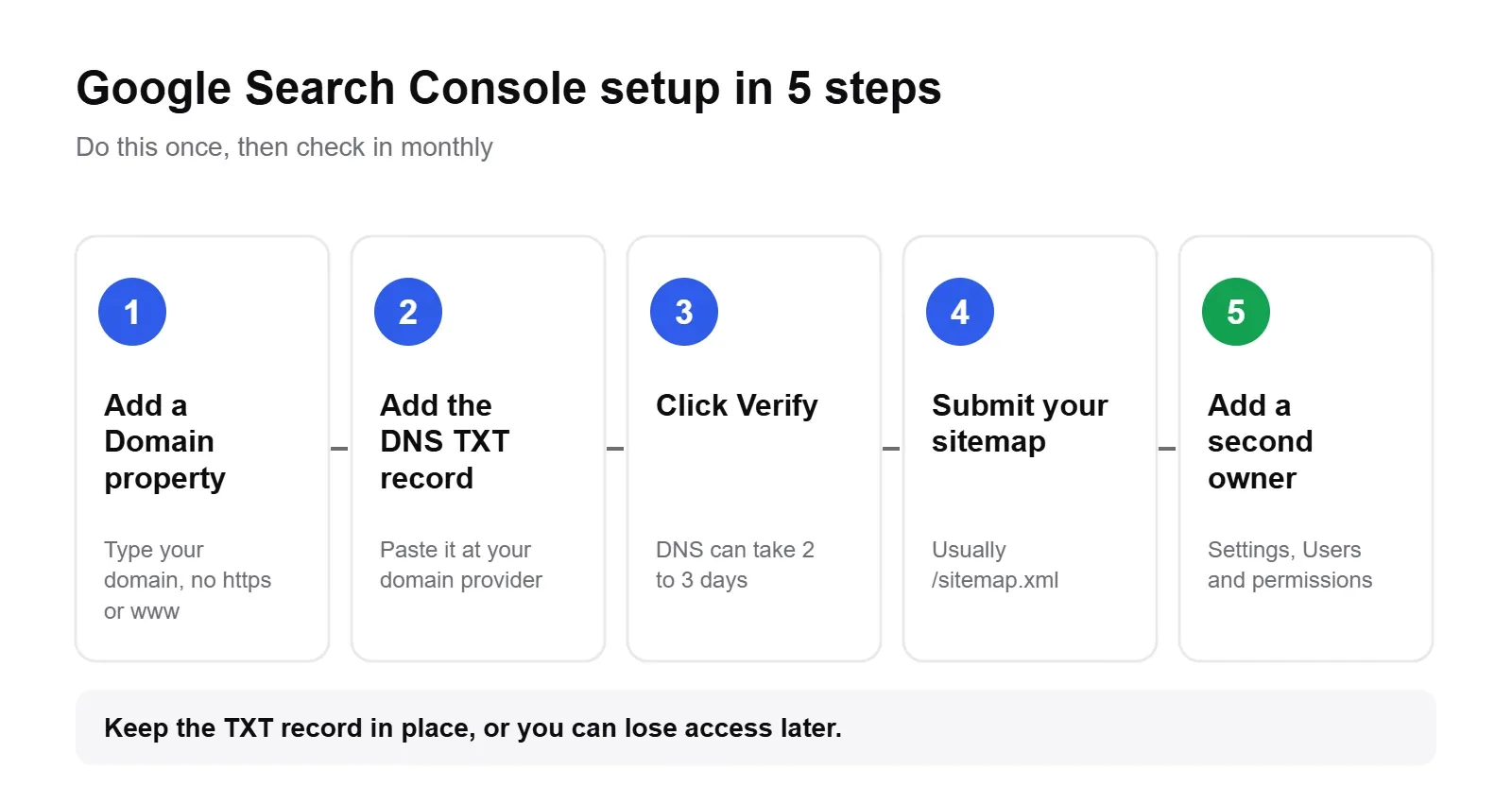
Verification proves to Google Search Console that you own the site. Here is the DNS method, step by step:
- In Search Console, choose Domain, type your domain without https or www, and continue.
- Copy the TXT record Google shows you. It starts with google-site-verification=.
- Log in to your domain registrar or DNS host and open the DNS settings for that domain.
- Add a new TXT record. Leave the host or name field as @ (or blank, depending on your provider) and paste the value.
- Save, go back to Search Console and click Verify.
Do not panic if it fails the first time. Google's help page says manually added records can take two or three days to start being served, and suggests waiting a day or two before trying again.
If you chose a URL-prefix property, the quickest route is usually the HTML tag method. You paste a meta tag into the head of your homepage, or into the verification box of your SEO plugin, then click Verify.
Keep the proof in place. Google rechecks verification from time to time. Its help page warns that removing the verification file or DNS record can cost you access after a grace period. Never delete that TXT record when you tidy up DNS, and tell anyone who manages your hosting to leave it alone.
Once verified, open Settings > Users and permissions and add a second owner, such as a business partner. One lost password should not lock your company out of its own data.
Submit Your Sitemap to Google Search Console
A sitemap is a file that lists the pages you want Google to know about. Google's getting started guide calls it optional, because Google can find pages by following links. It also says a sitemap may help Google find your pages faster and lets you watch its status in the Sitemaps report.
- Open Sitemaps in the left menu.
- Type the sitemap path after your domain, for example sitemap.xml.
- Click Submit.
- Come back the next day and check that the status says Success and shows a count of discovered pages.
If the count looks far too low or far too high, your sitemap may be listing the wrong pages. Tag archives, test pages and thin author pages can sneak in. That is worth fixing before you look at anything else.
How to Read the Search Console Performance Report
The Search Console performance report is where you will spend most of your time. It answers a simple question: how does Google Search send people to my site?
Google's Performance report help page lists four headline numbers:
- Clicks: how many times someone clicked through from Google to your site.
- Impressions: how many times a link to your site appeared in results.
- CTR: clicks divided by impressions.
- Average position: where your topmost result usually appeared, with 1 being the top.
By default, the report shows the last three months. The newest data can be preliminary and appears as a dotted line that may change. You can switch to a 24-hour view with hourly data, which helps when you have just published something.
The tabs under the chart
Below the chart, you get tabs for Queries, Pages, Countries, Devices, Search appearance and Dates. Click any row to filter the whole report by it. For example, click one page and then open Queries to see every search that showed that page.
If you serve readers in more than one country, there is a newer option. A Search Console change log from Keywords Everywhere records that a multi-country filter arrived on 6 October 2026, so you can view combined traffic for several countries at once. A Pakistani business that also sells to the Gulf can now compare Pakistan alone against Pakistan plus the UAE and Saudi Arabia.
Search types
The Search type selector at the top switches between Web (text), Web (multimodal), Image, Video and News. Most small sites only need the text view. If you sell products with strong photos, check Image and the multimodal option from time to time. Those show searches where people looked with images rather than typed words.
How AI Overviews show up in your numbers
Many owners ask whether AI Overviews appear in this report. Google's page on impressions, position and clicks says they do. An AI Overview takes one position, every link inside it shares that position, and a click on one of its external links counts as a normal click.
Five Questions the Performance Report Answers
Numbers are only useful if they lead to a decision. Here are five useful questions to ask, and where to find each answer:
| Your question | Where to look | What to do next |
|---|---|---|
| Which pages bring the most visitors? | Pages tab, sorted by clicks | Keep these updated and link to them from newer posts |
| Which pages are seen but rarely clicked? | Pages tab with CTR switched on, high impressions and low CTR | Rewrite the title and meta description so they match the search |
| Which searches almost rank on page one? | Queries tab, average position between about 8 and 20 | Improve that page so it answers the query fully |
| Did traffic drop, and where? | Compare date ranges, then check Pages and Queries | Find the pages that lost the most clicks first |
| Where are my readers? | Countries and Devices tabs | Check mobile speed if most traffic is on phones |
The second and third rows are the quickest wins for a small site. A page with many impressions but a low CTR is already in front of people; it just needs a clearer promise in the title. A query sitting around position 10 often needs only a better section, an example or a short table to move up.
Is Your Page on Google? Using the URL Inspection Tool
The URL inspection tool checks one page at a time. Paste any address from your site into the search bar at the top of Search Console and press Enter.
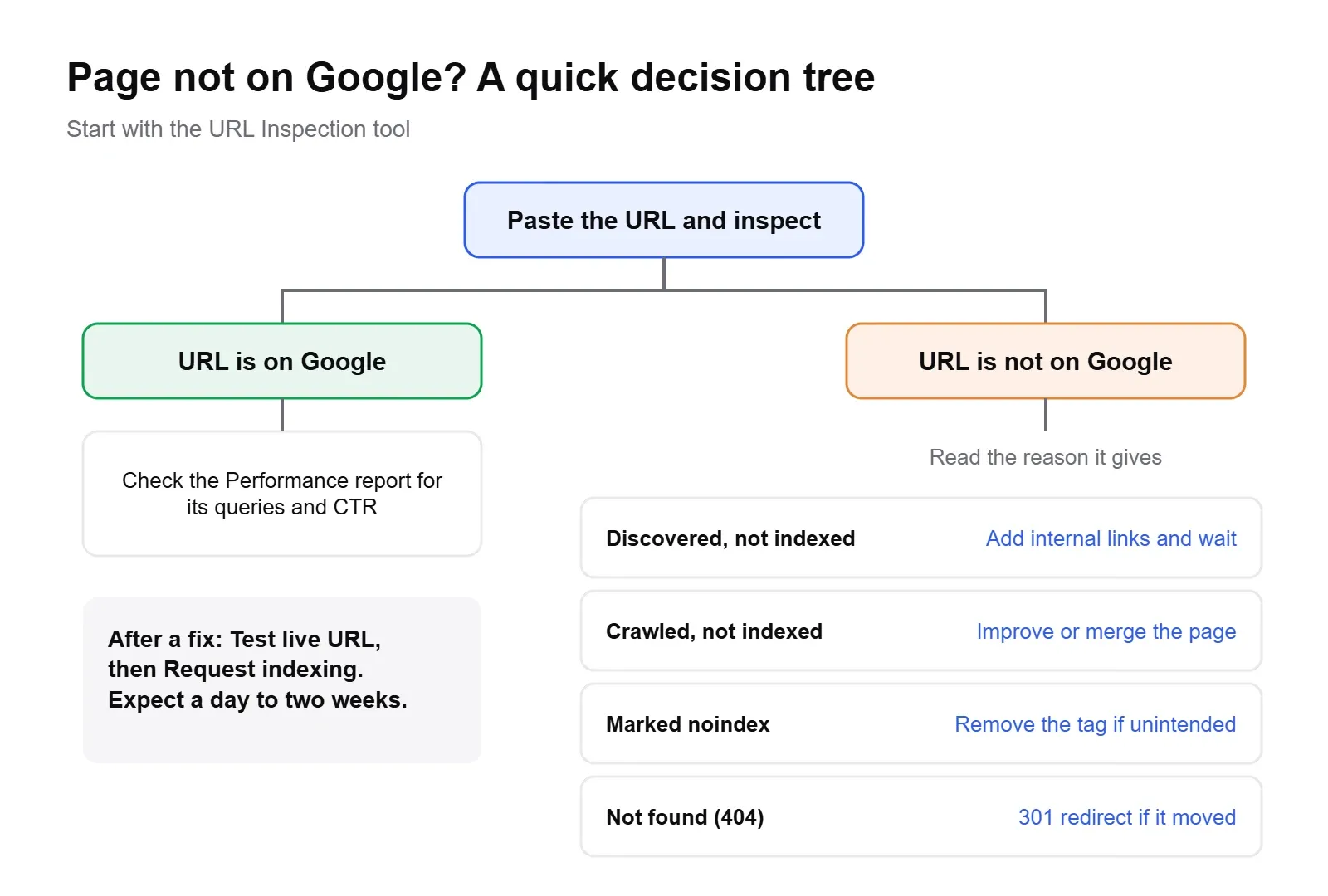
Google's URL Inspection help page explains the result. You will see either "URL is on Google" or "URL is not on Google". The details show when Google last crawled the page and which URL it chose as the canonical (the main version among similar pages).
Two buttons matter:
- Test live URL fetches the page as it is right now. Use it after a fix to confirm Google can read the new version.
- Request indexing asks Google to crawl the page again. Use it for a new page or a page you have changed a lot.
Be patient after you request indexing. Google says indexing usually takes a day or so but can take up to a week or two. There is also a daily limit on requests for each property. If you have published dozens of pages, submit or resubmit your sitemap instead of inspecting each one.
Understanding the Page Indexing Report
The page indexing report shows every URL Google knows about, split into indexed and not indexed, with a reason for each group. Beginners often see a large "not indexed" number and assume the site is broken. Usually it is not.
Google's Page indexing help page is clear on this: you should not expect every URL to be indexed, only the canonical pages. Redirects, duplicates and pages you deliberately hid will all appear as not indexed, and that is normal.
Here are the statuses you will meet most often, in plain language:
- Crawled - currently not indexed: Google read the page but chose not to add it for now. Google says there is no need to resubmit it. The real fix is usually a stronger, more useful page, or merging it with a similar one.
- Discovered - currently not indexed: Google knows the URL exists but has not crawled it yet. On a new site, give it time and add internal links to the page.
- Duplicate without user-selected canonical: Google picked another page as the main version. This is not an error if the two pages really are the same.
- URL marked 'noindex': Fine if you meant it. If not, a plugin setting or a theme option is often the cause.
- Not found (404): Fine for pages you removed on purpose. If the page moved, add a 301 redirect to the new address.
- Page with redirect: The old address redirects elsewhere, so it is not indexed. Nothing to fix.
When you do fix a real problem, open that issue and click Validate fix. Google's help page says validation typically takes up to about two weeks. You will get emails as it progresses.
The Safety Reports: Manual Actions, Security and Core Web Vitals
A few reports matter rarely, but when they matter, they matter a lot. Google's getting started guide lists them:
- Manual actions: shows if Google has applied a manual penalty to your site, which can hide some or all of it from results. "No issues detected" is what you want to see.
- Security issues: shows signs that your site may be hacked or harmful to visitors.
- Core Web Vitals: real-world data on how fast and stable your pages feel to visitors.
- Rich results reports: errors and warnings in structured data, such as product, FAQ or review markup.
The same guide also mentions two tools to keep in mind. The Removals tool hides a page from results temporarily, for about six months. The Change of Address tool helps when you move to a new domain. You will not need either often, but knowing they exist saves panic later.
What's New in Search Console in 2026?
Google Search Console changed more this year than in several years before it. Two changes are worth knowing about, even as a beginner.
The generative AI control and AI reporting
On 3 June 2026, Google announced new controls for website owners. A setting in Search Console lets you choose whether your site appears in generative AI features in Search, which Google names as AI Overviews, AI Mode and AI Overviews in Discover. The same announcement adds reporting on how your pages appear in those features, including impressions and a country breakdown.
The post, updated on 31 August 2026, says these features have now reached all websites worldwide. Google also says opting out means no traffic or impressions from those AI features, and that the setting is not used as a ranking signal outside them.
For most small businesses, my advice is to leave the setting on. AI answers are another place customers find you. Opt out only if you have a clear business reason, such as paid content you do not want summarised, and you accept losing that visibility.
Platform properties for social and video
Search Console can now report on content you post on Instagram, TikTok, X and YouTube when it appears in Google Search. Relevant Audience reports that these platform properties became available to all users worldwide on 29 July 2026, and that you do not need developer access or partner status to use them.
This is useful if your business sells or teaches mainly through Instagram, TikTok or YouTube. You can finally see which of your posts and videos Google shows to searchers. Check the help documentation inside the tool for the current setup steps, because this feature is new and may still change.
A 20-Minute Monthly Google Search Console Routine
Google's own guide says you do not need to sign in every day. It sends email alerts for new issues, and suggests checking roughly once a month or after you change content. Here is a monthly routine that fits that advice:
- Read your alerts (2 minutes). Search your inbox for Search Console messages and act on anything marked as an error.
- Compare the last 28 days with the previous period (5 minutes). Note any big change in clicks and find the pages behind it.
- Pick one CTR fix (5 minutes). Find a page with high impressions and low CTR and rewrite its title.
- Pick one "almost" query (5 minutes). Find a query around position 8 to 20 and note what the page is missing.
- Glance at Page indexing and the safety reports (3 minutes). Look for new spikes in errors, manual actions or security issues.
Write what you changed and the date in a simple sheet. Two months later, you can check whether the change helped. That habit turns Search Console from a dashboard you glance at into a feedback loop that improves your site.
If you outgrow the built-in screens, Google offers a daily bulk export to BigQuery that sends all your performance data, apart from anonymised queries, into a database. That is a step for analysts and developers, not beginners, but it is good to know it exists. If you already work with data in Power BI, my post on Power BI vs Excel can help you decide where to build those reports.
Beginner Mistakes to Avoid
These are the mistakes beginners make most easily when they first open the tool:
- Clicking Request indexing on every page. The daily limit runs out fast, and Google suggests a sitemap when you have many pages.
- Panicking at "not indexed" numbers. Many of those URLs are redirects, duplicates or deliberate exclusions.
- Judging a change after three days. Recent data is preliminary, and rankings move slowly. Wait at least a few weeks.
- Letting the developer own the property. Make sure the business owner is listed as an owner, not only a user.
- Deleting the verification record. This quietly removes your access weeks later.
- Tracking average position alone. A page that starts appearing for many new queries can show a lower average even while clicks rise. Watch clicks first.
Where Search Console Fits With Your Other Tools
Google Search Console is one tool among a few you need. Use Google Analytics, or a similar tool, to see what visitors do on your site. Use Google Business Profile if you serve local customers; my Google Business Profile optimization checklist covers that side. Use Search Console to understand Google Search itself.
If your site is slow, poorly built or hard to update, Search Console will show the symptoms, but fixing them may need a developer. The breakdown of website development cost in Pakistan explains what that work usually involves, and my development and training services are listed if you want help.
Your One Step This Week
Do the setup today, even if you do nothing else. Create a Domain property, add the DNS TXT record, submit your sitemap and add a second owner. Then put a reminder in your calendar for the same date next month to run the 20-minute routine.
If you want hands-on training on this for yourself or your team (see my teaching page), or you are stuck on a verification or indexing problem, get in touch. Setting up Google Search Console properly is one of the cheapest things you can do for your website's future.